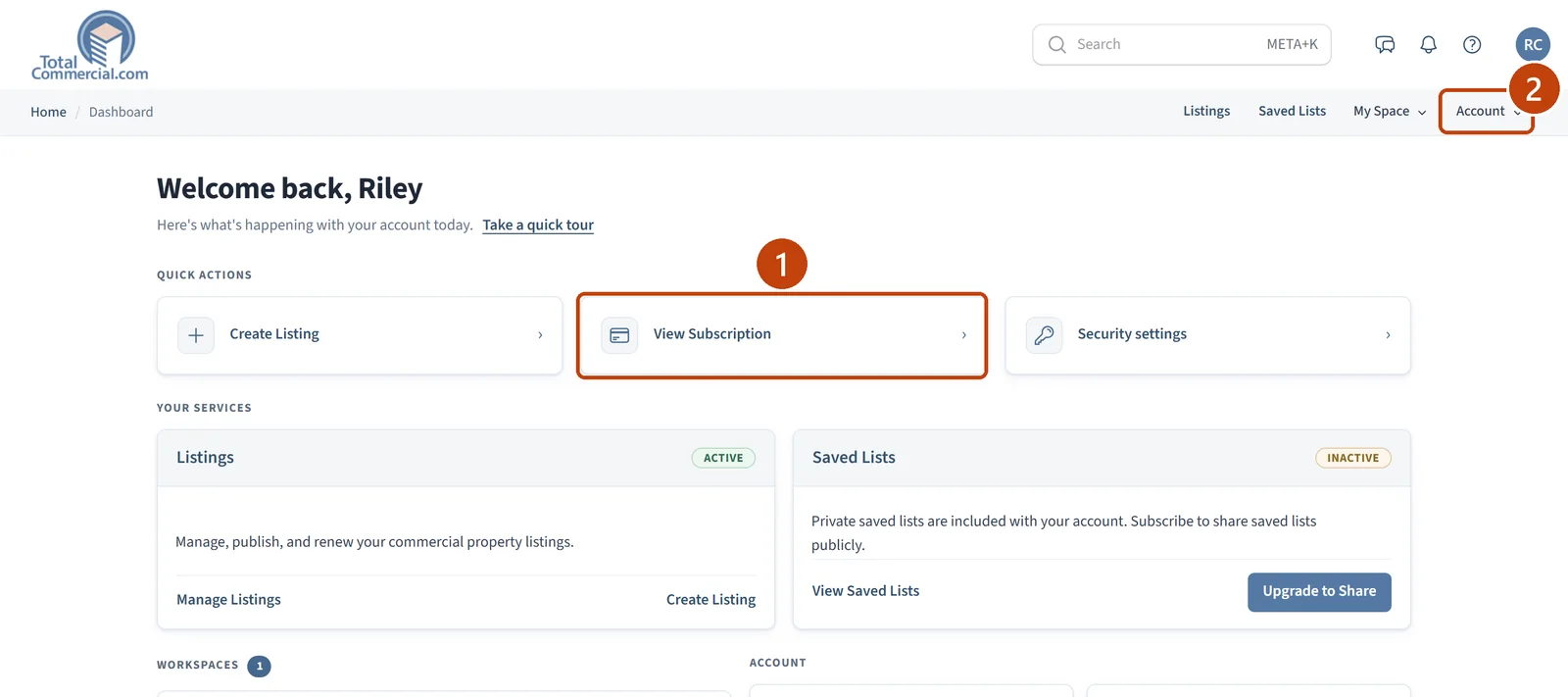
Everything about your plan and payments is under Account at the top of your Dashboard. The View Subscription quick action goes straight to your subscriptions.

Help Center · Billing
Find your plan, what it costs, and when it renews or ends, see your payments and orders, and set the billing address printed on your invoices.
Last updated October 2026 · 2 minute read
Everything about your plan and payments is under Account at the top of your Dashboard. The View Subscription quick action goes straight to your subscriptions.
Select Account to reach Subscriptions, Orders, Payments, and Billing Information.
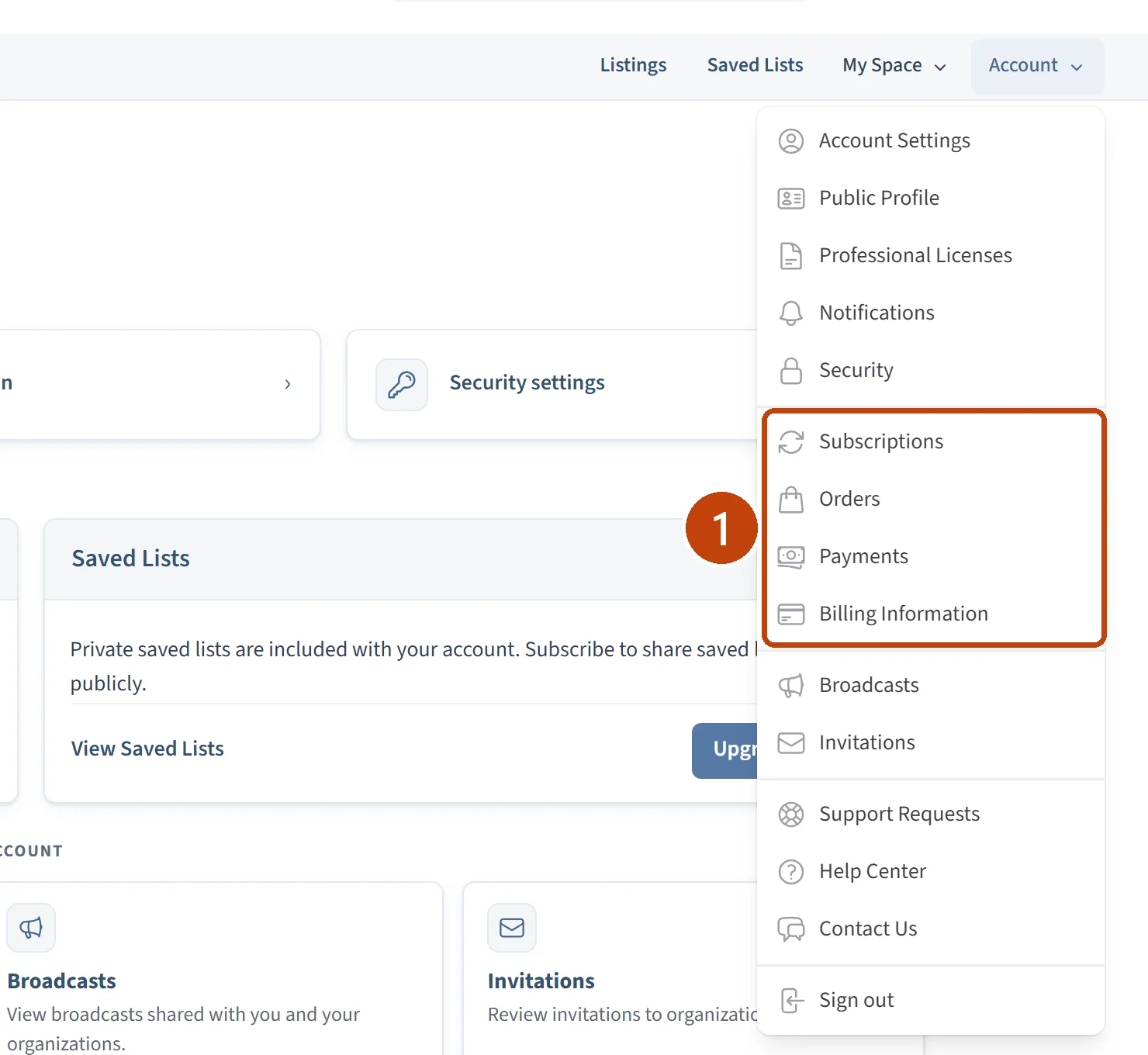
Select Account, then Subscriptions.
Each plan you have is listed with a badge and a sentence saying what happens next: when it renews, or when it ends. Services you have not subscribed to appear under Available services.
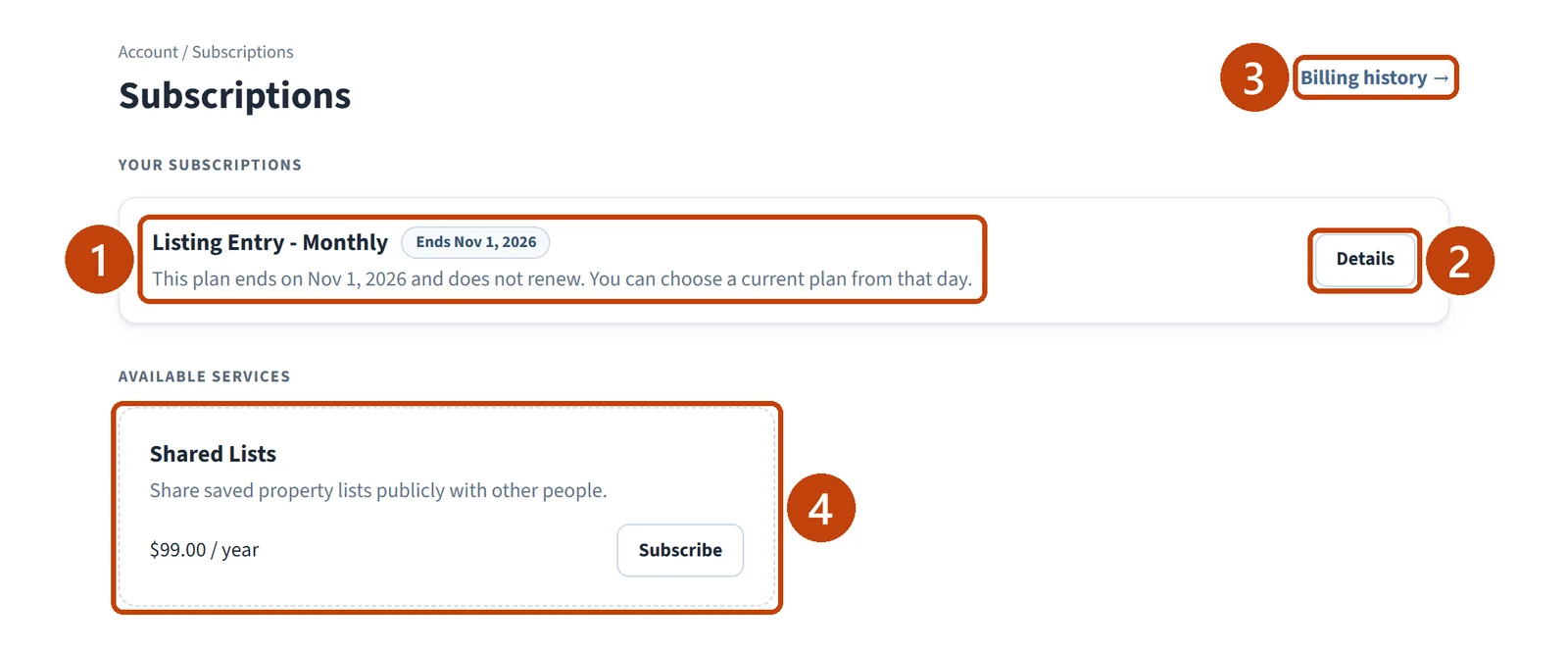
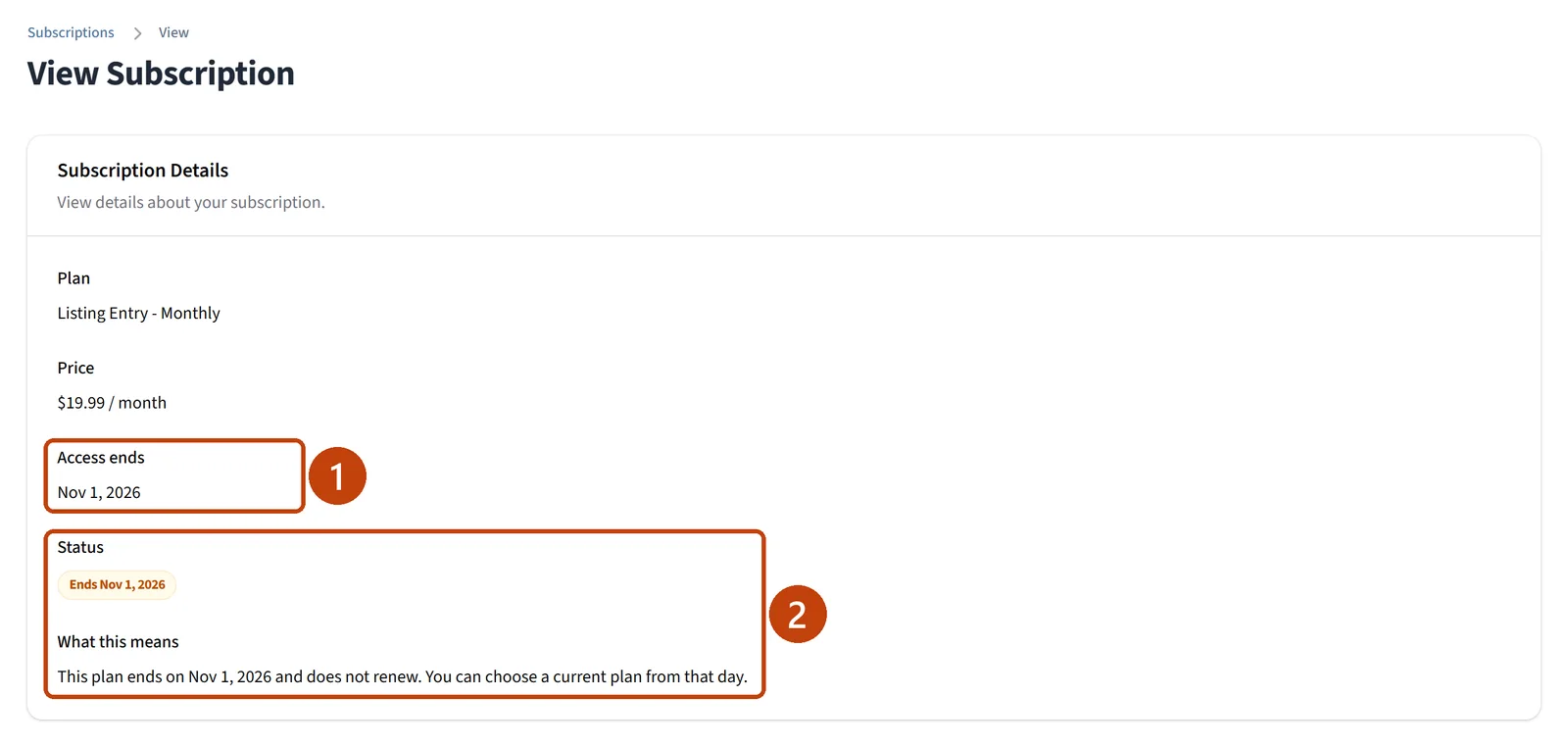
Select Details to see the plan, its price, the date it renews or ends, and its status.
In this example the plan ends on a set date and does not renew, so the date is labelled Access ends.
For a subscription paid by card, the Details page also has a Manage Subscription button. Depending on the plan, it offers Change Plan, Update Payment Details, Add Discount, and Cancel Subscription.
If you do not see the button, that subscription cannot be changed from this page. Contact support and quote the plan name and status shown here.
On the Subscriptions page, select Billing history, or select Account, then Payments.
One-time purchases are listed separately under Account, then Orders, where you can filter by Success, Pending, or Failed.
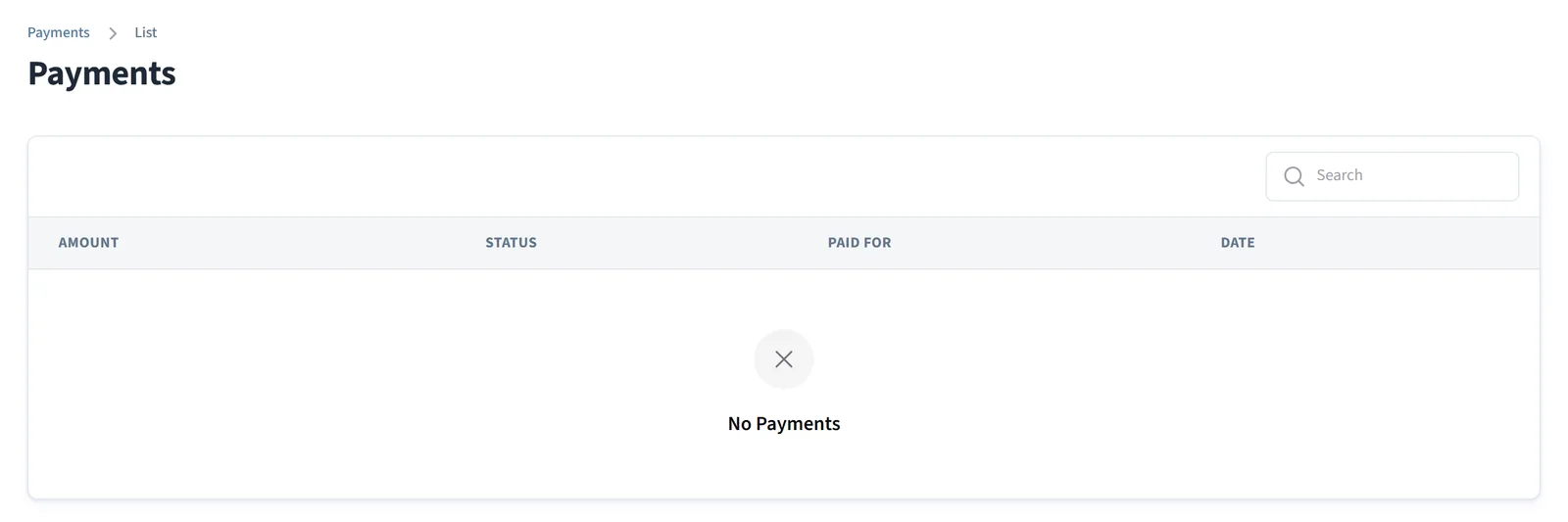
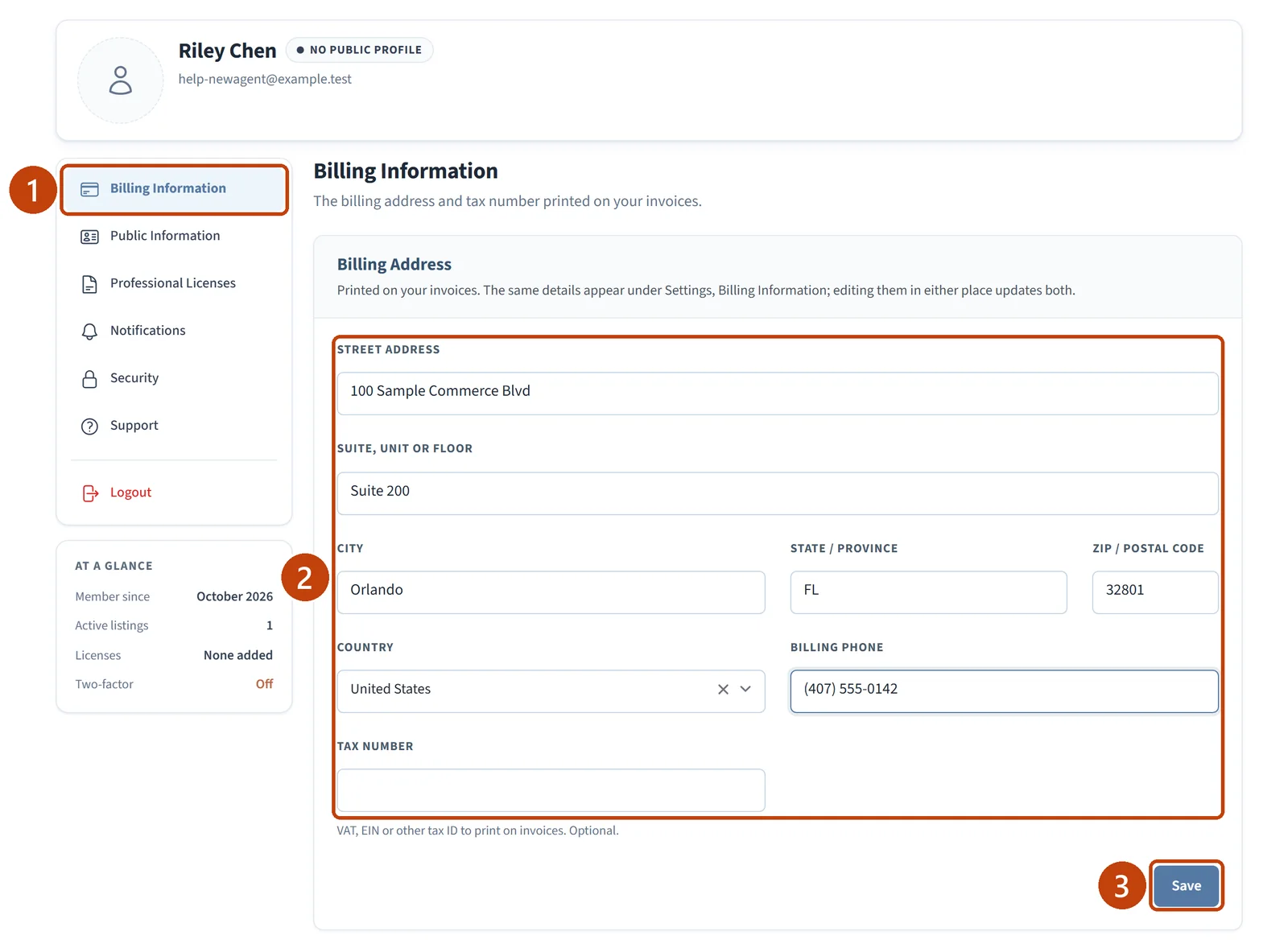
Select Account, then Billing Information.
Under Billing Address, enter the street address, city, state or province, ZIP or postal code, and country.
Optional: add a Billing Phone and a Tax Number (VAT, EIN, or other tax ID).
Select Save.
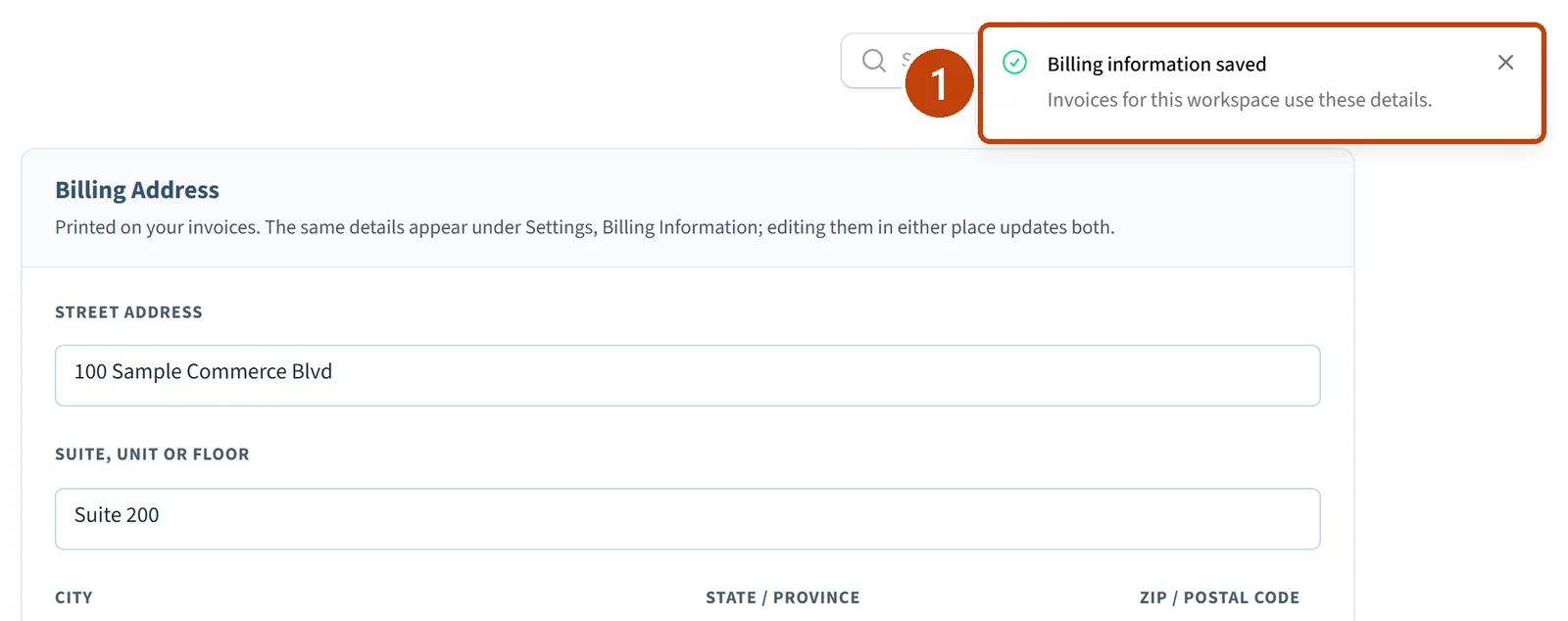
The message “Billing information saved” appears. These details are printed on your invoices.
A plan you paid for shows as inactive. Open Subscriptions and check its badge. If it still looks wrong, contact support and quote the plan name and status.
An invoice shows the wrong address. Update Billing Information and select Save.